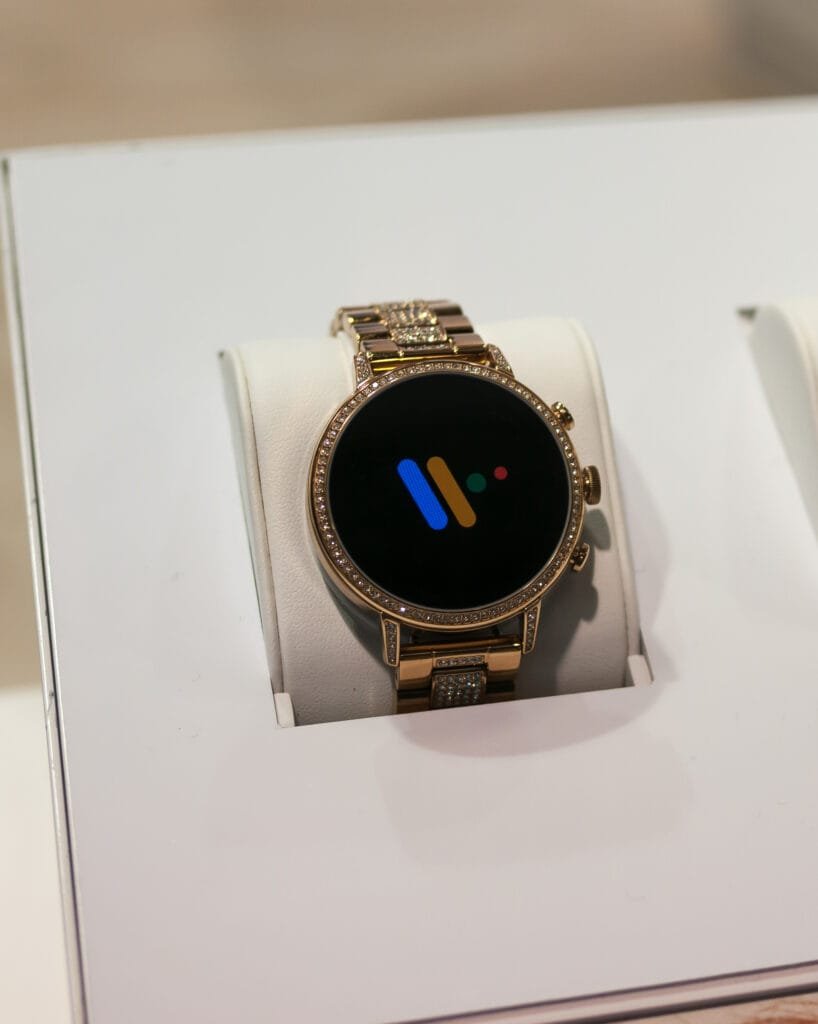
A Fossil Gen smartwatch (Wear OS models like the Gen 4, 5, or 6) that won’t charge is usually a connection or debris issue rather than a dead battery. Work through these in order before assuming the worst.
Dirt or Debris on the Charging Contacts
Fossil’s Wear OS models charge through small metal contact points on the back of the watch that need to touch matching pins on the charging puck. Sweat residue, lint, or general grime on either surface is enough to break that connection even though everything looks fine.
Fix: Wipe both the back of the watch and the charging puck with a soft, dry cloth before connecting them. This alone resolves a large share of charging complaints, and it’s the first step Google’s own Wear OS support guidance recommends too.
The Watch Isn’t Seated Correctly
The magnetic charging puck needs the watch centered and flush against it for the pins to make contact. It’s easy to think it’s connected when it’s actually sitting at a slight angle or offset to one side.
Fix: Place the watch on the puck and gently adjust its position until you feel the magnetic pull center it. You should see a charging icon or percentage appear on the screen within a few seconds if it’s making proper contact.
A Damaged or Incompatible Cable
A frayed, bent, or generic third-party cable can fail to deliver enough power even when it physically connects. Check the cable and the charging puck itself for visible damage or discoloration around the pins.
Fix: Test with a different USB power source if you have one. If you suspect the cable or puck itself is faulty, use the official Fossil charger rather than a generic replacement, non-matching chargers are a common cause of unreliable charging on magnetic pin systems specifically.
A Software or System Glitch
Occasionally the watch’s software fails to recognize a valid charging connection even though the hardware is working fine. This is more likely if the watch was already critically low on battery when you tried to charge it.
Fix: If the watch still has enough charge to respond, press and hold the crown until the power menu appears and restart it. If the watch is completely unresponsive, leave it connected to the charger (properly seated) for at least 30 minutes before checking again, some models need a small amount of charge before the screen will wake to show progress.
If Nothing Above Works
If you’ve confirmed clean contacts, correct seating, and a working cable and power source, and the watch still shows zero response after 30+ minutes on the charger, the battery or charging circuit itself may have failed. That’s a hardware issue best handled through Fossil’s support or an authorized repair service rather than something to keep troubleshooting at home.
If you’re dealing with a traditional analog Fossil watch rather than a Wear OS smartwatch, see our guide on setting a Fossil watch with 3 dials instead.
Conclusion
Start with the simplest explanation: clean both charging surfaces and make sure the watch is seated flush and centered on the puck. That resolves most cases. If it still won’t charge after ruling out the cable, power source, and a basic restart, the battery or charging circuit likely needs professional attention.